
User Flows Built From Your Product, Not a Drawing Tool
A user flow maps the path through your product to a goal — and in most teams it lives in a diagramming app, frozen the day it's approved. AppGenie's visual flow builder is in development, built on screens and scenarios already in your product model, so the flow stays true to what actually ships.
Join the Waitlist →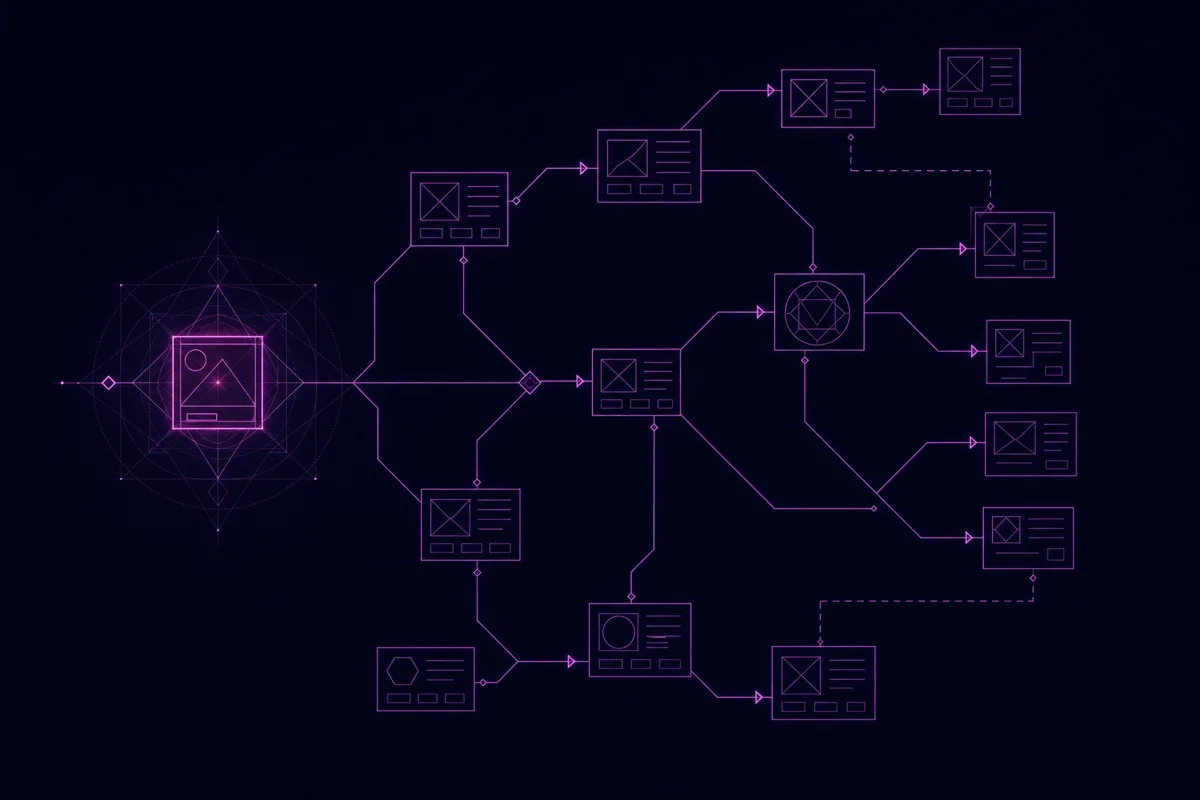

Why User Flows Stop Being Trusted
The problem with most user flows isn't the drawing — it's that the drawing lives apart from the build. A map nobody keeps current is worse than no map at all.
Flows Live in a Drawing Tool
User flows get mapped in a whiteboard or a diagramming app, then frozen the moment the design is approved. The build moves on; the diagram does not. Within a sprint it describes a product that no longer exists.
The Diagram Drifts From the Build
A flow diagram and the actual screens are maintained in two different places by two different people. Nothing keeps them in sync, so the map and the territory diverge — and the diagram quietly stops being trustworthy.
Flows Are Not Connected to the Spec
A flow shows which screens exist and how they connect — exactly what a spec and a test need to know. But when the flow lives in a picture, that structure has to be re-typed into requirements and test cases by hand, losing fidelity at every step.

A flow diagram is a specification wearing a picture's clothes. It says which screens exist and how they connect — so why does it live in a tool that can't build any of them?
Your Screens Are Already Modeled
A flow is only as trustworthy as the screens it connects. In AppGenie those screens already exist as structured data — a model of screens and elements with a sitemap hierarchy, the Design module — and BDD scenarios already describe the steps through them. That is the hard part, and it is shipped. The visual flow builder is being built directly on top of it, so flows will be assembled from the real product structure instead of redrawn from scratch in a separate tool.
See how scenarios work →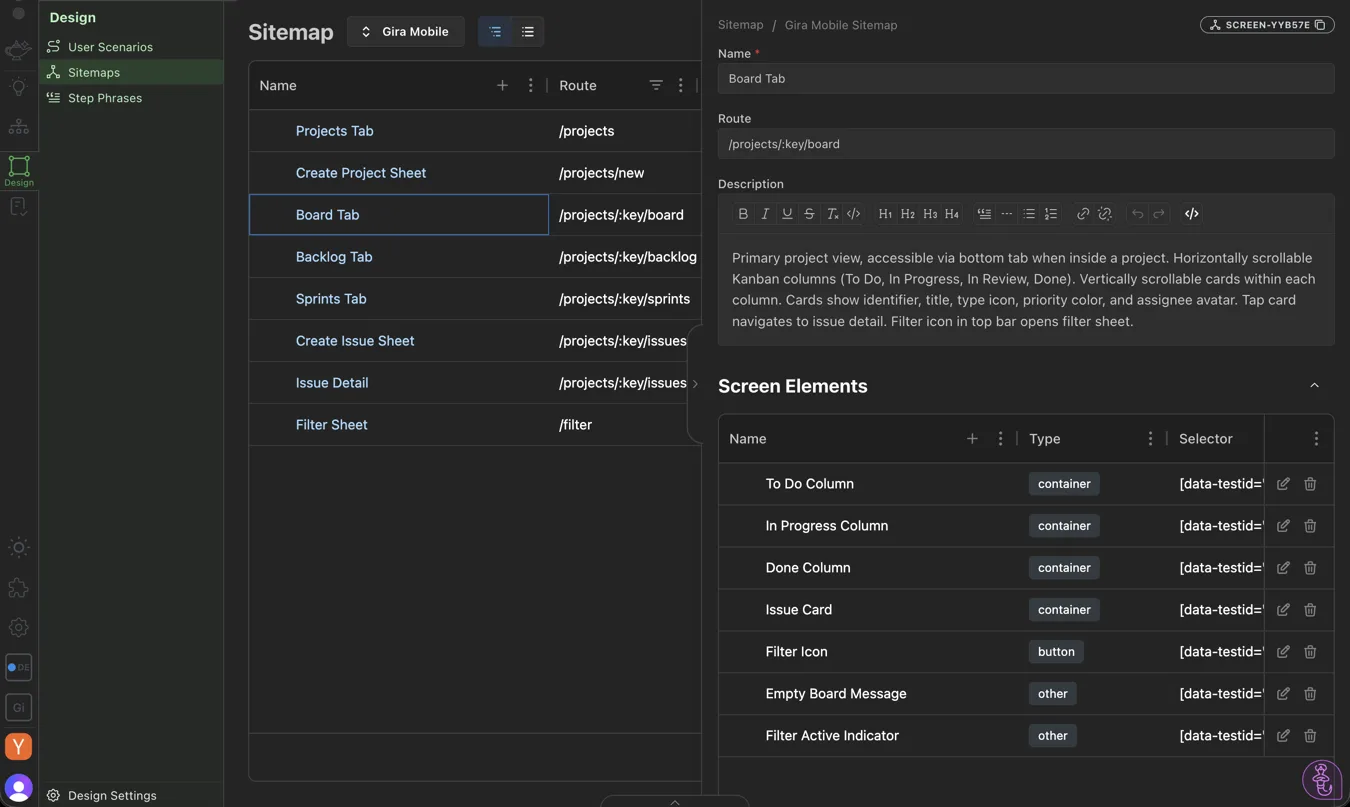
How the Flow Builder Will Work
Step 1 builds on what's shipped — your screens and elements are modeled today. The visual canvas and scenario-linking (steps 2–4) are in active development.
Start From Real Screens
The builder will draw on the screens and elements already in your product model — flows built from the actual structure, not placeholder boxes that drift.
Map Flows on a Canvas
A visual canvas to lay out screens, connect transitions, and branch decision points — the diagram and the model as one artifact. In development.
Flows Carry Their Scenarios
Each path will link to the BDD scenarios that define its behavior, so a flow is a specification, not just a picture. In development.
Stay in Sync
Because the flow lives in the same model as the screens and specs, it will not drift — change a screen and the flows that touch it stay current. In development.

Key Features
A structured model of your screens, a sitemap hierarchy, and BDD scenarios — with a visual builder that turns them into editable user flows.
- ✓ Structured screen and element model
- ✓ Sitemap / screen hierarchy (the Design module)
- ✓ BDD scenarios that describe flows as structured data
- ✓ Product model + MCP read/write for AI agents
- ◇ Visual canvas for user flows Coming Soon
- ◇ Drag-to-connect screens and decision branches Coming Soon
- ◇ Flows linked to their BDD scenarios Coming Soon
- ◇ Flow diagrams synced to the live product model Coming Soon
Frequently Asked Questions
What is a user flow?
A user flow is the path a person takes through a product to complete a task — the sequence of screens, decisions, and actions from an entry point to a goal. For example: land on the home screen, tap sign up, enter details, verify email, reach the dashboard. User flows make the structure of an experience explicit before it is built, so gaps and dead ends surface on paper instead of in production.
What is a user flow diagram?
A user flow diagram is a visual map of a user flow: boxes for screens or states, arrows for transitions, and branches for decisions. It shows every path through a task, including error and edge-case routes. A good flow diagram doubles as a specification — it defines what screens must exist and how they connect, which is exactly the information a build needs. In AppGenie those screens live in the product model.
What is the difference between a user flow and a user journey?
A user flow is the concrete sequence of screens and actions to complete a task inside the product. A user journey is broader — it spans the whole relationship, including moments outside the product (awareness, support, churn) and the user’s emotions along the way. Flows are tactical and buildable; journeys are strategic and experiential. Teams use both, at different altitudes.
Does AppGenie have a user flow builder today?
The visual user flow builder is in development, not yet available. What is shipped today is the foundation it builds on: a structured model of your screens and elements with a sitemap hierarchy, and BDD scenarios that describe flows through those screens as structured data. The visual flowchart layer — drawing and editing flows on a canvas, synced to that model — is the part actively being built.
How do you create a user flow?
Start from the user’s goal and work backward: define the entry point, list each screen and decision needed to reach the goal, then map the transitions including error paths. Keep one flow to one task so it stays readable. In AppGenie the screens and elements are already modeled and scenarios capture the steps — the same scenarios that drive automated E2E tests — so a flow is grounded in the real product structure rather than a throwaway diagram that drifts from the build.
Build on the model your flows will live in
Join the waitlist. The visual flow builder is in development.
Join the Waitlist →